01
Data lives in D365
Your customers live on their phones. Your data lives in Dynamics 365. Bridging the two usually means a six-figure mobile project and a team that doesn't exist.
Haiko lets Dynamics 365 customers ship native mobile apps for the people outside the organisation: students, tenants, applicants, members, patients, citizens. Your CRM developers build the app in Haiko Studio and watch it take shape in a live preview. Haiko generates the code and builds the app, ready for the App Store and Google Play.
Your customers live on their phones. Your data lives in Dynamics 365. Bridging the two usually means a six-figure mobile project and a team that doesn't exist.
Customers expect an app, not a login page in a browser. Web portals sit unused while support volumes stay where they were.
Sign-in, security, accessibility, app-store builds: all rebuilt, often badly, every time someone commissions a CRM mobile app.
The people who understand your business logic know Dynamics, not Swift or React Native. The team who knows what the app should do isn't the team who can build it.
Requests, applications, bookings, placements, repairs: the records that belong to them, and nobody else's.
Forms and step-by-step wizards that save straight to Dynamics 365. If your CRM says no, they're told why in plain words.
Each request moves through stages your CRM already records. They see where it is, what happens next, and when it's their turn.
Upload the documents you've asked for and open the ones you've sent them. It all lands on the record.
News feeds and pages from your existing website, inside the app, so there's one place to look.
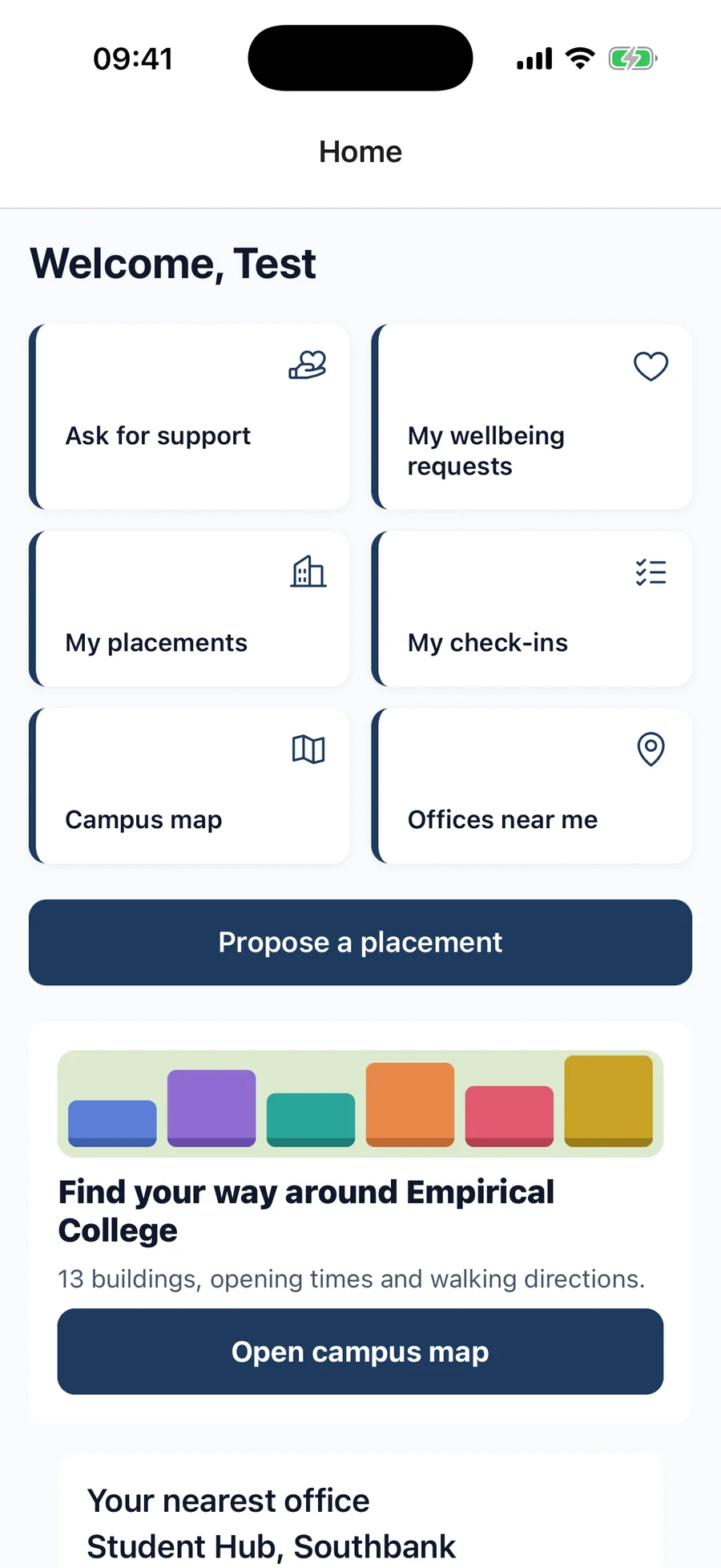
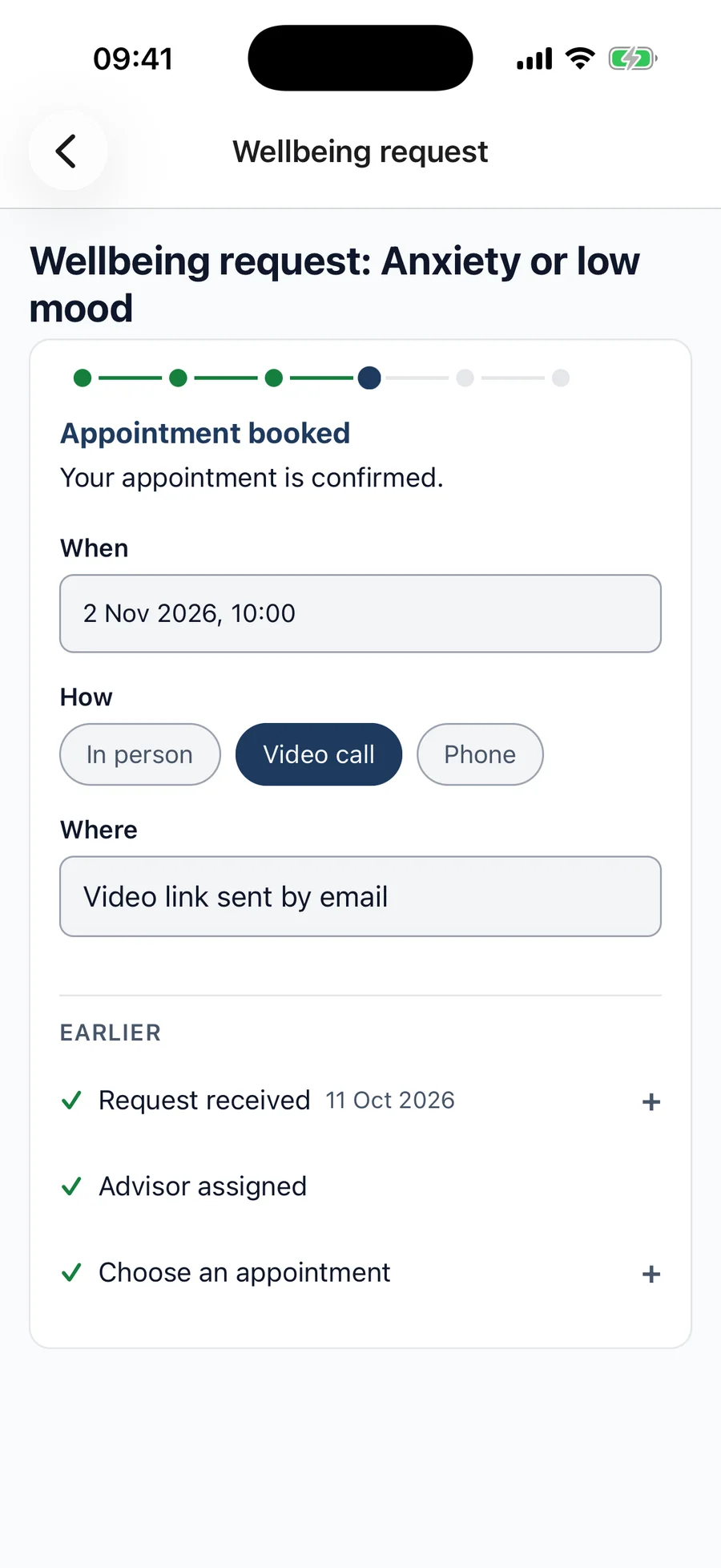
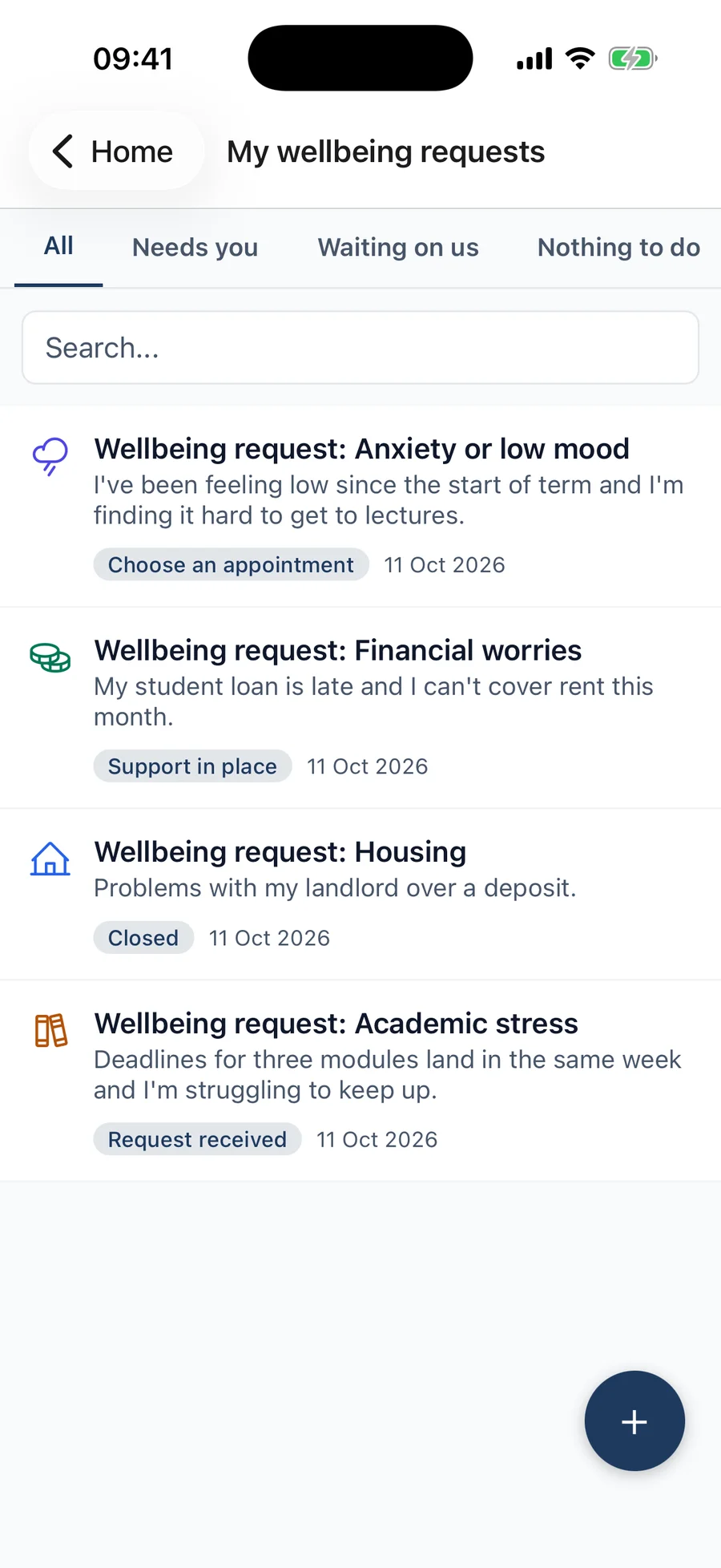
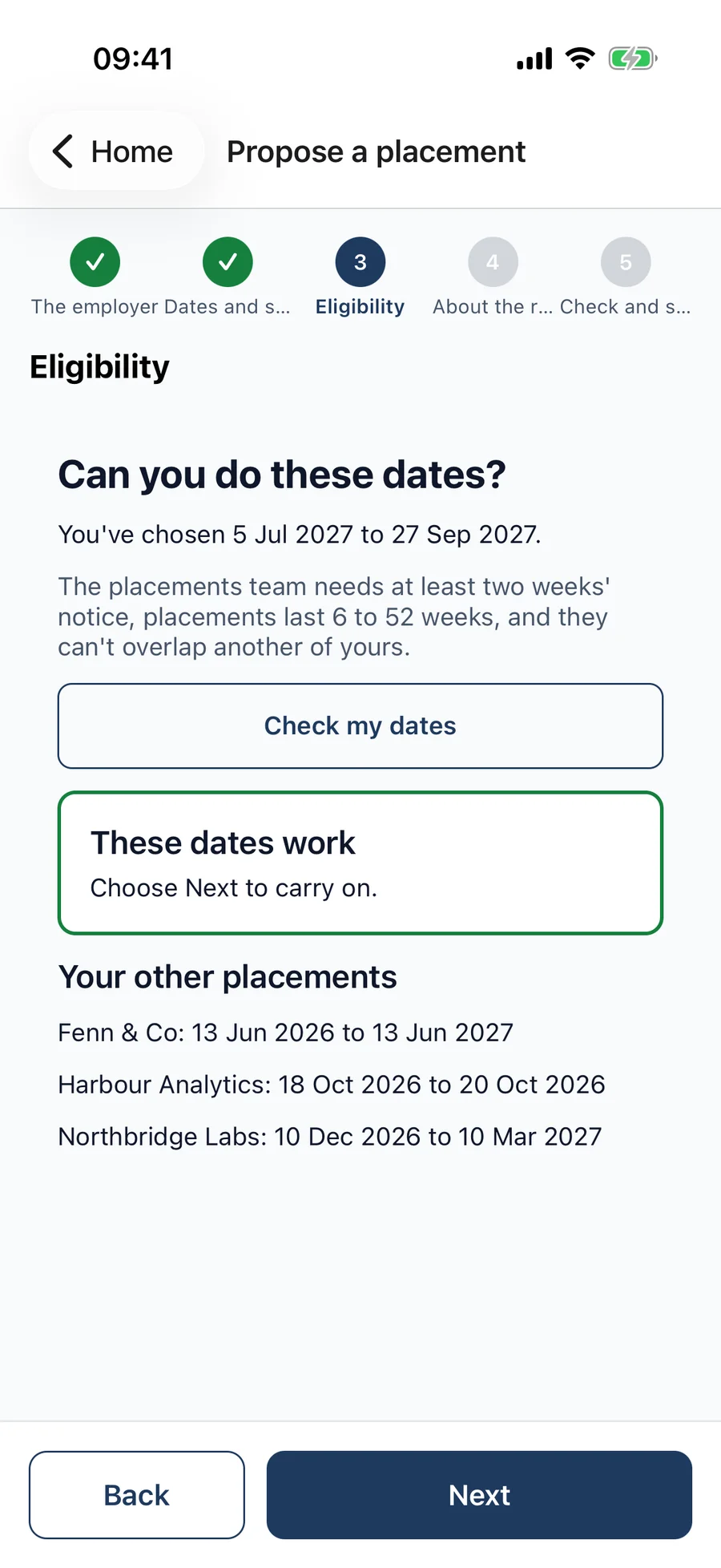
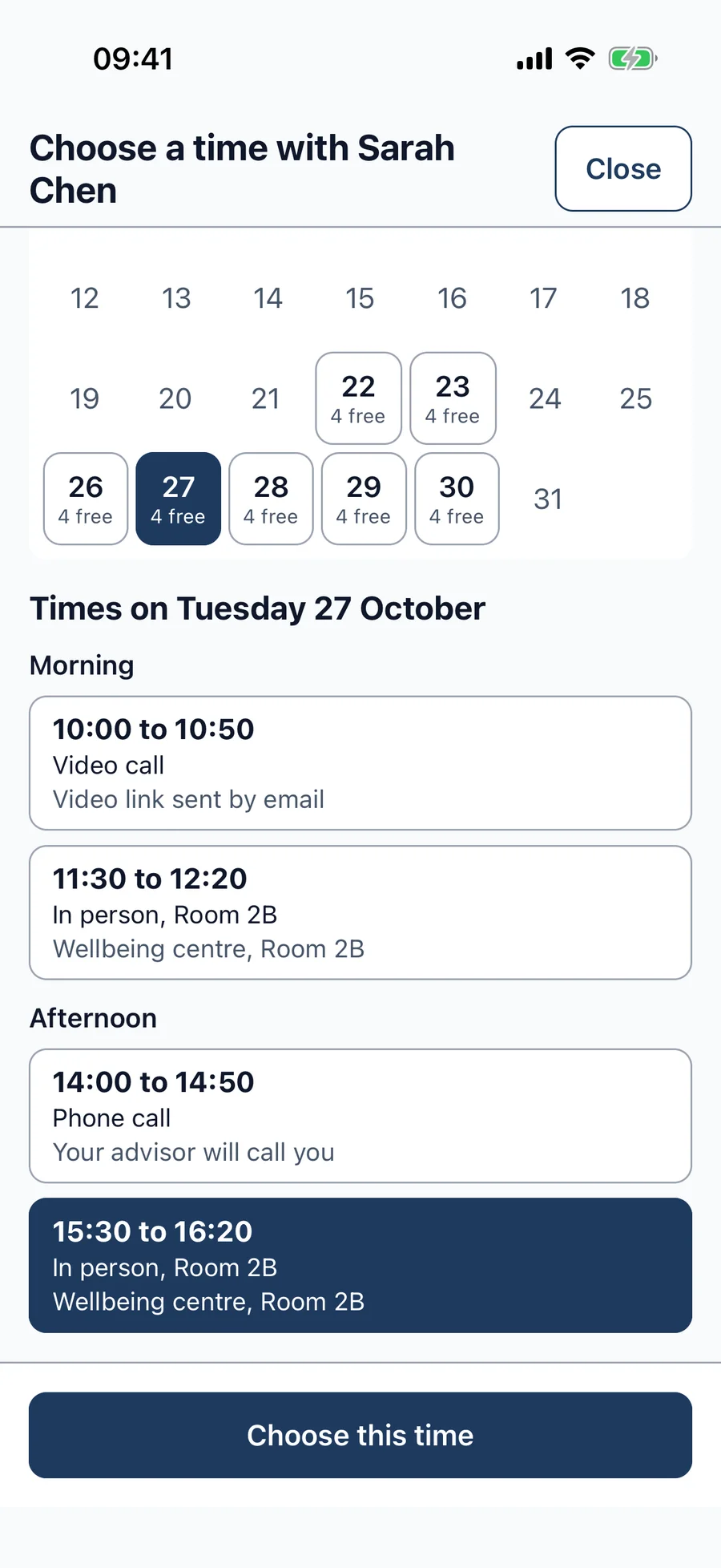
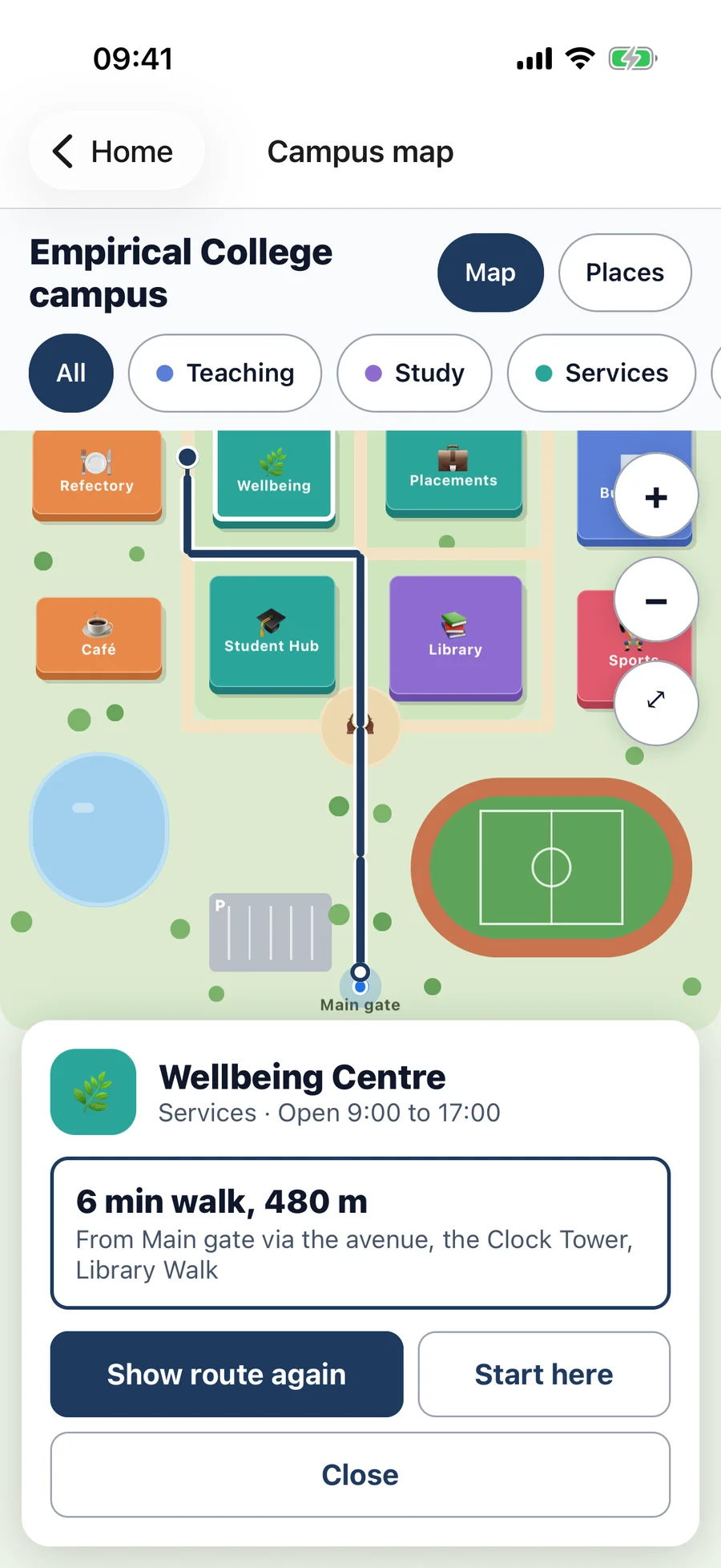
Configuration covers lists, forms, wizards and journeys. For the rest, such as a campus map, a booking calendar or an eligibility check against your CRM, add a plugin and place it in the app from Haiko Studio.
A campus map, an office finder, anything that needs a whole screen. It sits in the menu like any other screen.
“Your nearest office” or “Find your way around”: a card on the home screen that opens the full plugin.
An advisor's calendar, an address found by postcode. The plugin supplies one answer and the form does the rest.
Your own step inside a wizard, such as checking answers against your CRM or another system, so problems surface before anyone submits.
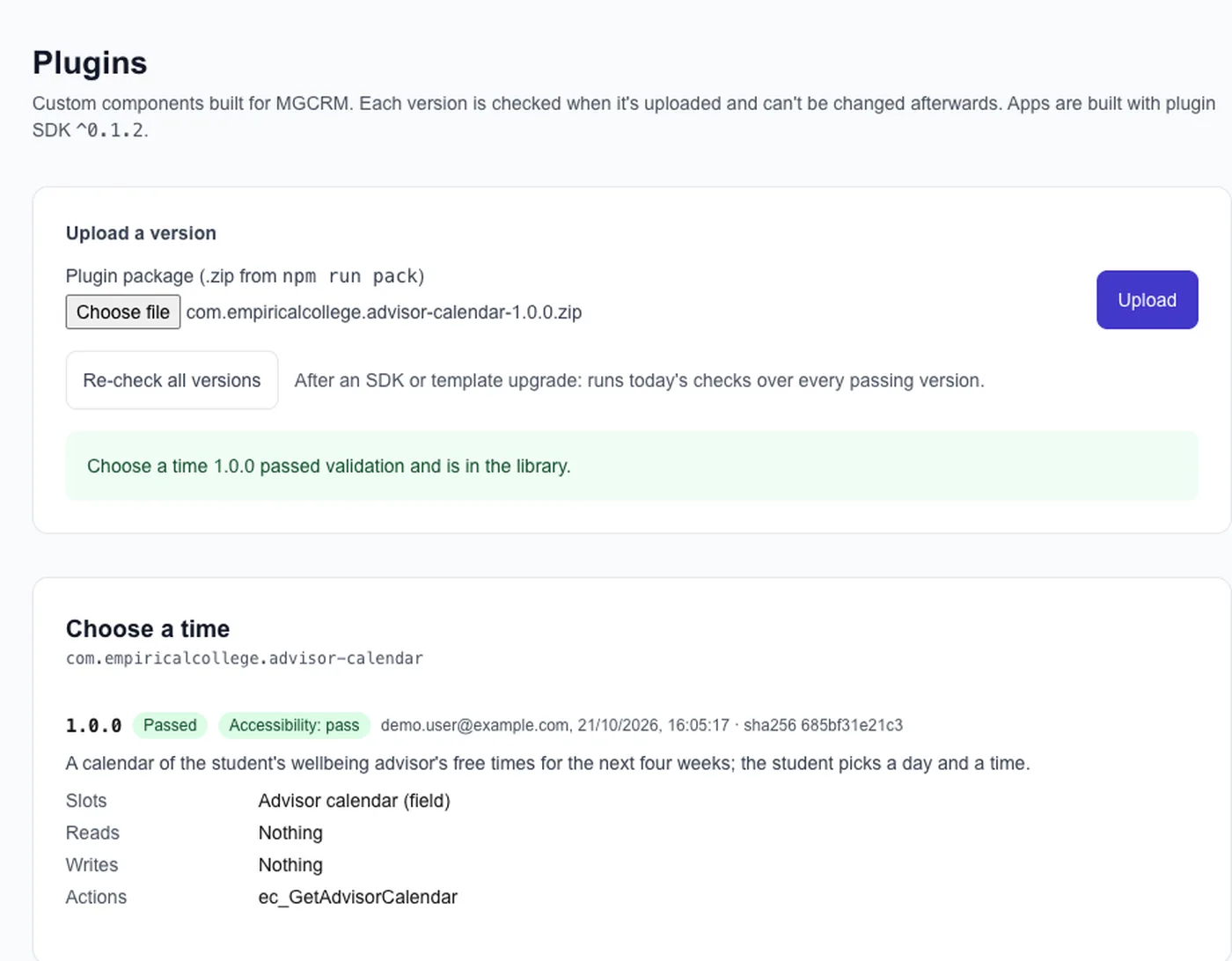
Every plugin version is checked when it's uploaded, accessibility included, and can't be changed once it passes. It declares what it reads, what it writes and which CRM actions it calls, and gets exactly that. Your developers can write one, or an AI coding agent can build one from a written spec: the appointment calendar above was built that way. The Haiko Dev Kit helps an agent do it.
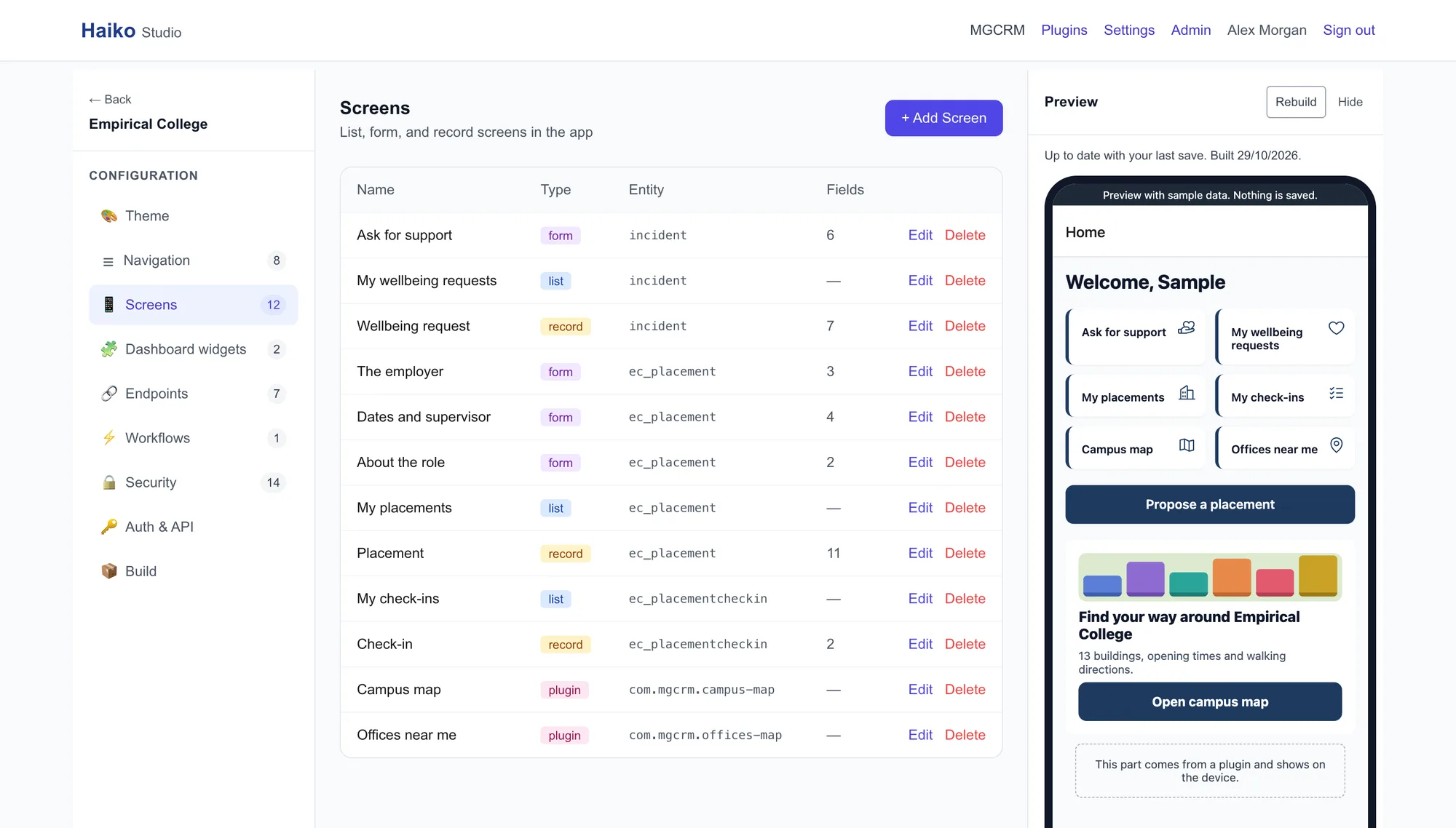
Your CRM team builds the app in Haiko Studio: screens, forms, wizards, journeys, home cards and branding, pointed at the Dynamics 365 tables you already have.
Save in Haiko Studio and within about a minute the preview beside the editor shows the change, with sample data. No phone or app install needed.
Real iOS and Android apps, built with React Native. Your brand, your icon, your listing on the App Store and Google Play. Not a web wrapper.
Trust comes from Microsoft, not the phone. Every request carries an Entra-signed token naming one Dynamics 365 contact; your published security policy decides the rest.
Every Haiko component is built to WCAG 2.2 AA, and a plugin has to pass an accessibility check before it can go into an app.
The runtime API, the identity tenant and the data live in your Azure subscription. We don't hold your customers' data.
Your CRM developer builds the app in Haiko Studio: which records contacts see, which forms they fill in, which journeys they follow, what's on the home screen. Each screen points at the Dynamics 365 tables you already have.
About a minute after each save, the preview beside the editor shows the change, with sample data. Click through the app before anyone installs anything.
Colours, logo and icons are set in Haiko Studio. Sign-in runs through your own Microsoft Entra External ID tenant, which we help you set up once.
When configuration isn't enough, add a plugin: a map, a booking calendar, a check against your CRM. Upload it to Haiko Studio, place it, save.
Haiko Studio starts the build, and signed iOS and Android apps come out of your app's own code repository.
Your app is submitted to the App Store and Google Play.
Apple and Google review every new app, usually within a few days. Then your customers download it, sign in as their existing contact record, and start serving themselves.
Haiko Studio works out whether a change can go straight to phones or needs a new store release. Changes like a new form or a wording fix go out over the air, with no store review.
Open the Haiko Dev Kit in an AI coding agent such as Claude Code and say what you want: "Analyse my CRM", "Build my app", "I need a plugin that…". The agent asks the right questions and does the legwork. You review what it builds.
Looks at your solutions, tables and processes, structure only and never a contact's data, and works out the journeys your contacts go through.
Drafts the screens, forms and security policy in Haiko Studio. You check it in the Preview, and a person has to publish the security policy.
Designs, builds and tests a plugin from a written spec when configuration isn't enough.
Universities and colleges, housing associations, local government, healthcare providers, membership bodies, professional and financial services: any organisation where the value of the CRM depends on how the external contact experiences it.
Teams that have been quoted for a custom mobile app and stalled on cost, capacity, or risk. Haiko turns the project into configuration, with plugins for the parts only you have.
Organisations running a web portal that nobody uses, watching call volumes and email queues climb regardless. Mobile is where the audience is.
Tell us a little about your organisation and we'll get back to you, whether that's a quick question answered or a look at a working app.